Your site is white. Your visitors see nothing. Below is what that message means and the four things to try right now, in order, from the least scary to the most. Then the part where you stop doing this at 2am.
No sign-up needed to use the steps below. They work whether or not you ever install anything of ours.
Work down the list. Most critical errors are gone by step two. Do not skip to editing files until you have tried the first two — they are reversible, and file edits are where people turn a broken site into a lost one.
One rule before you start: if your host offers a snapshot or a one-click restore point, take one. It costs a minute and it is the difference between an annoying evening and a very bad one.
Since WordPress 5.2, a fatal error triggers an automatic email to your admin address, subject line “Your Site is Experiencing a Technical Issue”. It names the plugin or theme that broke and carries a recovery-mode link.
That link logs you into wp-admin with the offending plugin paused, even though the front end is dead. Check spam. If the email never arrived, your site probably cannot send mail either — go to step 2.
If you can still reach /wp-admin, go to Plugins and deactivate the one you updated or
installed just before this started. Nine times in ten, that is the whole fix.
Cannot remember what changed? Deactivate all plugins, confirm the site returns, then reactivate them one at a time, loading the site after each. The one that kills it is your culprit.
Locked out of wp-admin entirely? Open your host’s file manager (cPanel, Plesk, your host’s
dashboard) or connect over SFTP, go to wp-content/plugins/, and rename the suspect
plugin’s folder — add -off to the end. WordPress cannot load what it cannot find,
so it deactivates it and lets you back in.
Renaming the whole plugins folder disables everything at once. Rename it back after you get in,
then re-enable plugins one by one from wp-admin. If the site is still broken with every plugin off,
switch to a default theme like Twenty Twenty-Four the same way.
Everything above is guesswork until you see the real message. Add these lines to
wp-config.php, above the line that says “That’s all, stop editing”:
define( 'WP_DEBUG', true );
define( 'WP_DEBUG_LOG', true );
define( 'WP_DEBUG_DISPLAY', false );
Reload your site, then open wp-content/debug.log. The last PHP Fatal error line
names the exact file and line number. Turn WP_DEBUG back off when you are done —
leaving it on can leak paths to visitors.
You are into wp-config errors, a corrupted core file, a PHP version your theme does not support,
or a database that will not connect. At that point restore your host’s most recent snapshot and
take the diagnosis with you — the line from debug.log is worth more to whoever helps you
next than any description of what the screen looks like.
A WordPress site runs code from dozens of authors who have never spoken to each other, and it updates itself. Four things cause nearly every critical error:
The most common cause by a wide margin. An update ships a function your PHP version does not have, or clashes with another plugin that was fine yesterday.
Your host upgrades PHP for security. An older theme or plugin uses syntax that was removed, and the site dies on the next request.
Both hook the same thing, or both declare the same function name. Neither is broken alone. Together they are fatal, and only on some pages.
One stray character in functions.php. The built-in editor will happily save a file that takes the whole site down, with no undo.
Notice what they have in common: they all happen when you are not looking. The update runs overnight, the host bumps PHP on a Tuesday, and you find out from a customer.
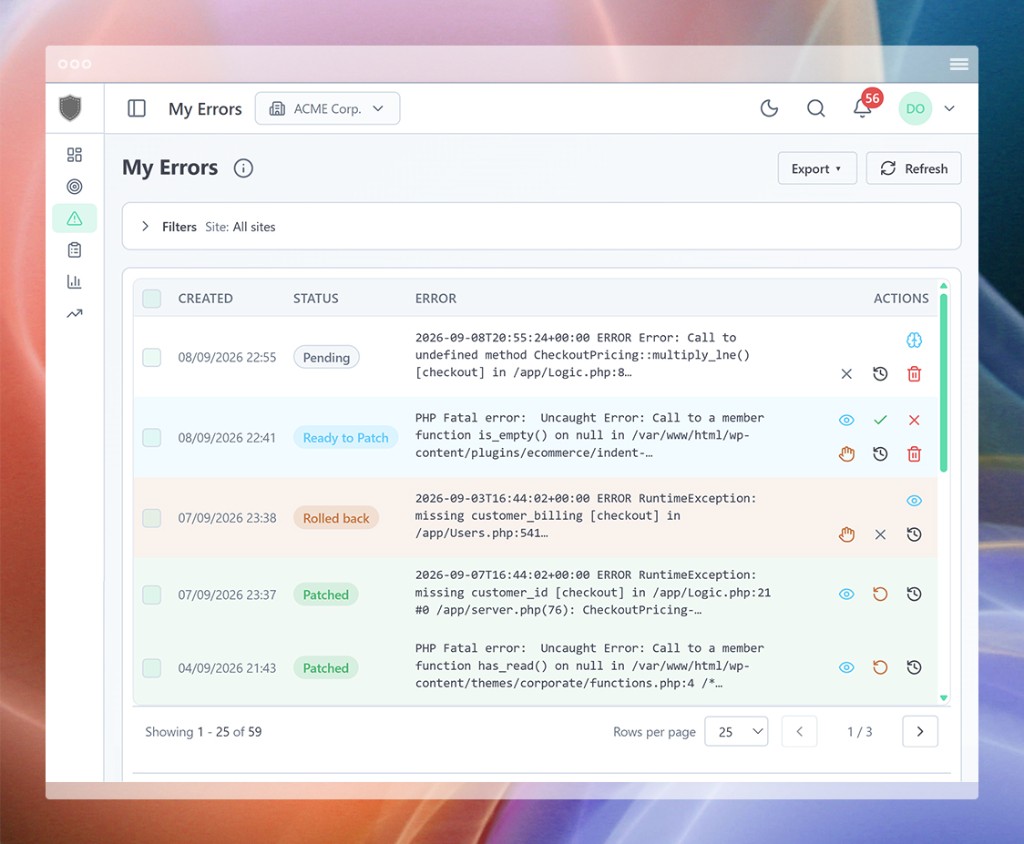
Here is the awkward truth about every WordPress tool: a fatal error stops all plugins, including the one that was supposed to help. Patcherly ships a second, tiny piece called Emergency Rescue that WordPress loads before regular plugins. So when your site white-screens, it is still running.
Rescue catches PHP fatals during plugin load — before your normal error log might record them — and sends the line to your dashboard. You get told, instead of finding out from a customer.
Rescue picks up rollback requests from the dashboard and restores files from the backups sitting on your own server — even though nothing else on the site can run.
Same backup, same syntax check, same verification as the normal path. You press approve from your phone; Rescue does the work on the server.
wp-content/uploads/patcherly/backups/ on your server, and syntax-checks the file before and after.You are about to give something permission to edit files on a site that pays your bills. You should know exactly where the edge of that permission sits, before you decide.
Full detail on the security page and in the WordPress connector docs.
.php and .phtml
The WordPress plugin never runs commands on your server — a plugin-directory rule and
a safety feature, which means no post-fix test runs or app restarts on WordPress.
Rescue cannot help if PHP dies inside wp-config.php, if another must-use plugin
crashes before it, or if you deleted the local backup folder. And Patcherly is
not an uptime monitor — it reacts to errors your site produces, it does not ping you every minute to say the site is alive.
Plenty of people will fix this for you, and sometimes that is the right call — a freelancer who knows your site is worth every euro on a gnarly custom build. Here is the trade, without the spin.
| Freelancer or fix service | Patcherly | |
|---|---|---|
| Clock starts when | You notice, and write the ticket | The error happens |
| Typical first response | Hours, or next business day | A drafted fix waiting for you |
| Cost shape | Per hour or a monthly retainer | Flat, and there is a free plan |
| Who gets your admin login | They do | Nobody |
| Who decides what changes | Usually them | You, every time |
| Undo | Ask, and wait again | One click, from your own backup |
| Understands your custom build | A good one, deeply | Reads the error, not your business |
The honest version: Patcherly is very good at the boring fatal errors that make up most of your downtime, and it is not a substitute for a human on a genuinely hard problem. What it does do is hand that human a diagnosis instead of a screenshot.
Still unsure? Ask us directly — the founder reads every message.
It means PHP hit a fatal error and stopped, so WordPress had nothing left to render. The cause is almost always a plugin, a theme, or a PHP version change — not your content, and not your database. WordPress hides the detail from visitors on purpose; the real message is sitting in your error log.
Usually yes. Recovery mode, deactivating the plugin you just updated, or renaming the plugin folder resolves most of them, and the steps on this page cover all three. What a developer buys you is speed and the confidence not to make it worse — which is also what an approval gate and a one-click rollback buy you.
That is what Emergency Rescue is for. It is a must-use plugin that WordPress loads before regular plugins, so it keeps logging errors, applying fixes you approve, and running rollbacks even when the main Patcherly plugin cannot load. It cannot help if PHP dies inside wp-config.php, if another must-use plugin crashes first, or if you deleted the local backup folder.
Not unless you turn that on yourself. New targets start in dry run and every fix waits for your approval. Auto Apply is opt-in, scoped to a single site, and revocable in one click.
No. Nobody at Patcherly logs into your site. The plugin sends the error message, the file path and line, a small snippet around the error, and your WordPress and PHP versions. It never sends your database, your media library, your users, or your full site files.
The plugin snapshots every file in the patch into wp-content/uploads/patcherly/backups/ on your own server before it writes anything, and checks the file for syntax errors before and after. If the health check fails, rollback restores from that local backup — and you can trigger a rollback yourself at any time from the dashboard.
PHP files only — .php and .phtml, in your themes, plugins and custom code. It does not touch JavaScript, CSS, your database, or your uploads. If the bug is in a stylesheet or a database row, Patcherly is the wrong tool and will tell you so.
Yes, including network installs, custom themes, and any plugin. Post-apply test runs and app restarts are the one exception — the WordPress plugin never executes commands on your server, which is both a plugin-directory rule and a deliberate safety limit.
Install the plugin, click Connect, choose whether to share site context. About two minutes, no credentials change hands, and there is a demo mode if you want to see the whole workflow before you pair anything.
Full Pro plan for 30 days. No credit card. Free Personal plan after that, for as long as you like.
Running a shop? The WooCommerce page covers what a broken checkout costs and how fast this closes it.